



Quick Overview
Imagine you are at a hospital reception. The staff asks for your policy details, and your mind goes blank for a second. This is exactly where a health insurance card helps.
A health insurance card is a quick way to pull up your policy and insurer or TPA (Third Party Administrator) details during admission, especially if you are trying for a cashless claim. In this article, we will walk you through what a health insurance card is, the types, how to download a health insurance card, how to use it, and the difference between health insurance card and policy document.
What is a Health Insurance Card?
The HDFC ERGO health insurance card shown above is a sample health insurance card. It is a quick ID linked to your policy that helps a hospital pull up your coverage details during admission.
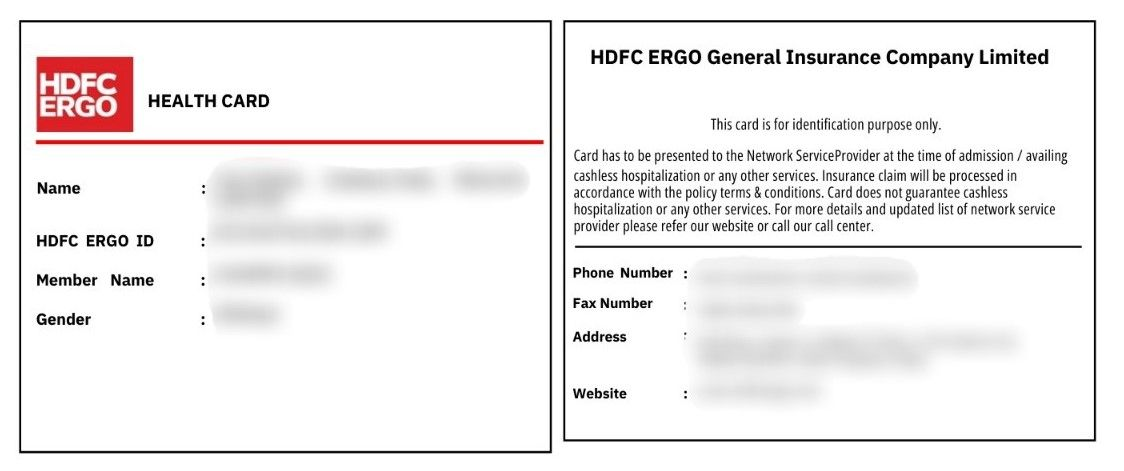
Why it's Important: A health insurance card makes it easier to route your case to the right insurer or TPA, which can speed up cashless processing.
What Information Is Printed: Usually: name of insured person, policy or member ID, insurer name, TPA or helpline number, and validity dates.
Benefits of Health Insurance Card
Easy Access to Cashless
Policy Details Always Handy
Quick Contact with Insurer
Less Paperwork Friction
Types of Health Insurance Cards
Note: Most insurers no longer issue physical cards. Digital cards are widely accepted. Your digital card is often included at the end of your policy document PDF. The digital card can be printed and laminated to keep it safe.
Talk to an expert
today and
find
the right
insurance for you.


How to Download Health Insurance Card?
If you need it right now, start here: open your policy PDF and check the last few pages. Many insurers place the digital health insurance card at the end of the policy document.
Step 1: Check Your Inbox and Policy Documents
- Search your email or SMS for “e-card” or “health insurance card”
- Open your policy PDF and scroll to the end
- Save the card PDF to your phone for offline access
Step 2: Download from the Insurer app or Website (Retail Policies)
- Open the insurer app or website
- Log in using your registered mobile number or email
- Go to My Policies or Policy Documents
- Download health insurance card or policy document
Step 3: Health Insurance Card for Group or Corporate Policies
- Ask HR for the insurer name and the TPA name
- Go to the TPA portal or app and look for Download e-card
- Enter your employee ID or member ID and date of birth
- Or ask your HR to share the health insurance card
- Download and save the e-card
Note: If you cannot download health insurance card, log in with the registered number and ask the insurer or TPA helpline to resend it (keep your policy number and DOB handy).
How to Use Health Insurance Card
Save and Share
Show at Admission
Ask for Cashless Processing
Use the Helpline
Difference Between Health Insurance Card and Policy Document
Why Choose Ditto for Health Insurance?
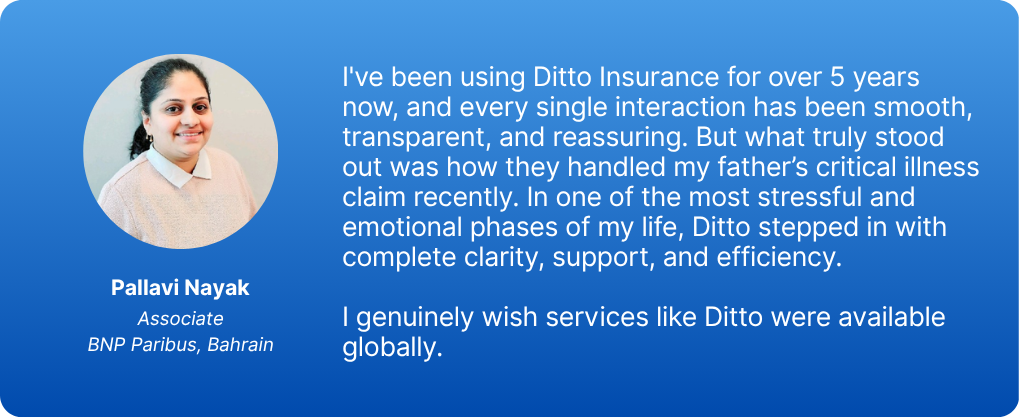
At Ditto, we’ve assisted over 8,00,000 customers with choosing the right insurance policy. Why customers like Pallavi below love us:
- No-Spam & No Salesmen
- Rated 4.9/5 on Google Reviews by 15,000+ happy customers
- Backed by Zerodha
- Dedicated Claim Support Team
- 100% Free Consultation
Confused about the right insurance? Speak to Ditto’s certified advisors for free, unbiased guidance. Book your call or chat on WhatsApp with us now!
Ditto’s Take on Health Insurance Card
A health insurance card is worth keeping handy, but it is not what decides whether your claim gets approved.
- Save the e-card offline. Physical cards are rare now. Keep the digital health insurance card on your phone and share it with your family.
- Use it as a shortcut, not the rulebook. It helps the hospital find your policy and reach the insurer or TPA faster, but approvals still depend on policy terms and documents.
- For cashless, check two things early. Confirm the hospital is in-network and ask them to start pre-authorization right away.
- Do not skip the policy document. It is where exclusions, waiting periods, room rent limits, sub-limits, and claim conditions actually live.
Frequently Asked Questions
Last updated on: